What This Guide Covers
Quick Answer: Practical Max Values to Use First
If you searched for max values for FOS save editor, start with values that match normal gameplay or the visible game UI. The editor can expose raw save fields, but Fallout Shelter still expects a playable vault. A value can look fine in a browser form and still cause the game to behave badly after restore.
| Field | Safe value to try first | Why this range is safer |
|---|---|---|
| Base SPECIAL stats | 1 to 10 |
Training normally caps the base stat at 10. Outfit bonuses can push effective stats higher, but editing base stats beyond 10 is unnecessary for most vaults. |
| Effective SPECIAL with outfits | Up to 17 in normal play |
The Fallout Wiki's SPECIAL reference explains that outfit bonuses can raise a dweller above 10. Treat this as an effective game value, not a reason to force every base stat to 17. |
| Dweller level | 1 to 50 |
Level 50 is the normal dweller cap. Editing beyond it can create display issues and does not add meaningful room performance. |
| Happiness | 0 to 100 |
The game displays happiness as a percentage. Keep it in a percentage range instead of using arbitrary large numbers. |
| Caps | Up to about 999999 for a first test |
Higher raw values may exist in a save file, but the UI and vault economy are easier to verify near the visible cap range. |
| Food, water, energy | Fill storage, then test moderate increases | Huge production values can hide whether rooms, incidents, and vault status are working correctly. Start with a comfortable surplus. |
| Lunchboxes, Mr. Handies, pet carriers | Small batches such as 10 to 99 |
These are safer to test in batches. Extreme counts can make it hard to identify which edit caused a problem. For Mr. Handy-specific repair and assignment notes, use the Mr. Handy guide. |
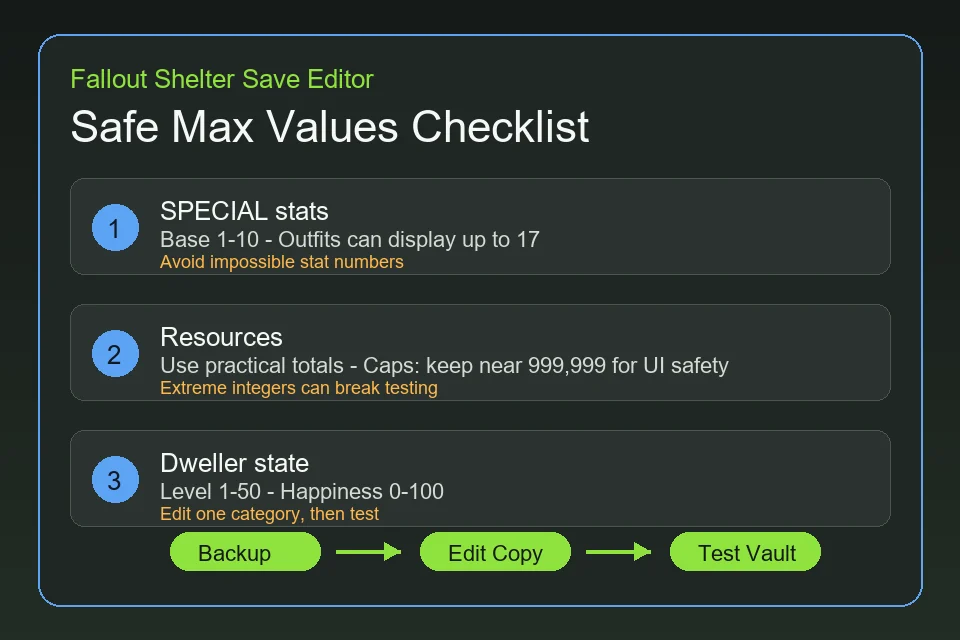
Important: A browser save editor cannot guarantee that every extreme value will remain stable in the game. Keep one untouched backup of the original .sav file before you test max-value edits.
Why Max Values Matter More Than Raw Number Size
Fallout Shelter save data includes simple-looking fields such as caps, food, water, energy, dweller SPECIAL stats, health, happiness, inventory, room state, and timers. Some fields are forgiving. Others depend on linked records or expected ranges. The practical question is not "what is the largest number the editor can save?" It is "what value can the game load, display, and save again without corrupting the vault?"
That is why this guide separates safe gameplay values from risky experimental values. If your goal is a playable vault, normal limits are enough: level 50 dwellers, base SPECIAL 10, high happiness, full storage, and a reasonable number of consumables. If your goal is to test save-file boundaries, use a separate vault slot and never overwrite your only progress.
Cloud saving is another reason to avoid big one-session edits. Bethesda's cloud save support article notes that mobile vaults can be backed up to the platform cloud when enabled. If you restore an edited file while cloud sync is active, the older cloud copy may replace your local test or confuse which file is current.
Dweller Values: SPECIAL, Level, Health, and Happiness
Base SPECIAL stats
For a stable save, set each base SPECIAL stat to 10 when you want a maxed dweller. The seven stats are Strength, Perception, Endurance, Charisma, Intelligence, Agility, and Luck. The Fallout Shelter SPECIAL stats guide explains which rooms and activities use each value, while the How to Use guide shows where these fields appear after you load a vault save.
Do not confuse base stat edits with outfit bonuses. A normal dweller can show effective values above 10 because outfits add bonuses, but the base trained value is still safer at 10. Forcing base values to 99 or 999 usually does not create a better vault; it creates a save that is harder to reason about. If the real goal is stronger dwellers, start with the best weapons and outfits guide before changing raw SPECIAL values.
Level and health
Use 50 as the practical maximum level. Health is more sensitive because it is tied to level and Endurance history. If you only want a stronger dweller, prefer editing level, happiness, and SPECIAL within normal bounds before manually typing extreme health values. For a long-term vault, a level 1 dweller trained with high Endurance before leveling is more consistent than a random high health number pasted into an old record.
Happiness and radiation
Happiness should stay between 0 and 100. Radiation and health-related values should be changed cautiously because the game may recalculate or display them in ways that do not match a raw value. If the editor offers "heal all" or "max happiness" buttons, use those before hand-editing fields.
Names, gender, and appearance
Name edits are usually low risk, but keep names readable. Avoid huge text strings, invisible characters, and copied JSON fragments. Appearance, room assignment, quest state, and wasteland state are higher risk because they can depend on other save records.
Vault Resource Values: Caps, Food, Water, Energy, and Items
Resource editing is usually safer than manual dweller record editing, but it still deserves a staged workflow. A vault with enough caps, power, food, water, stimpacks, and RadAway is easy to test. A vault with absurdly large values may load once but behave strangely when the game tries to save, spend, reward, or display those totals.
| Edit goal | Recommended first edit | What to test after restore |
|---|---|---|
| Enough caps for building | Set caps near 999999 |
Build or upgrade one room, close the game, reopen, and confirm the value persists. |
| Stable survival resources | Raise food, water, and energy to a strong surplus | Wait through one production cycle and one incident to confirm normal vault status. |
| Open many boxes | Add lunchboxes in a small batch | Open several boxes and confirm items, dwellers, and caps are added normally. |
| Unlock rooms and recipes | Use editor buttons when available | Enter build/crafting menus and verify the game still saves after the unlock. |
Practical rule: If a value affects the UI directly, stay near a value the UI can comfortably display. If a value affects linked records, change only one category and test before editing the next category.
Safe Workflow Before Using Max Values
-
Find the active vault file Confirm whether you are editing
Vault1.sav,Vault2.sav, orVault3.sav. Use the save file locations guide if you are unsure. -
Copy the save before editing Keep the untouched original outside the Fallout Shelter folder. Do not rely on the edited download as your only backup.
-
Edit one value category Start with caps or one dweller's SPECIAL stats. Avoid changing every resource, every dweller, every room, and every inventory field in the same test.
-
Restore the edited file to the correct slot Close the game first. On Steam or mobile, be careful with cloud sync so an older save does not replace your edited file.
-
Launch, save, close, and reopen A good edit should survive more than the first launch. Let the game save again, close it, reopen it, and confirm the vault still loads.
For platform-specific restore steps, use the PC and Steam save editor guide, the Android guide, or the iOS guide. The same max-value rules apply, but the file copy process changes by platform.
Troubleshooting Bad Max-Value Edits
The game ignores the edited value
You may have restored the edited save to the wrong vault slot, or the game may have loaded a cloud copy. Confirm the active slot number, close the game before replacing the file, and test with an obvious small edit such as adding a few caps.
The vault opens but values look wrong
Some values are displayed through the game's own formatting and may not show raw save-file totals exactly as typed. Reduce the value to a practical range and test again. If the problem is a dweller stat, return base SPECIAL to 10 and use outfits for bonuses.
The save crashes or returns to the vault list
Restore the untouched backup immediately. Then repeat the edit with one smaller change. If you used the save decryptor for manual JSON editing, validate that the JSON structure is still intact before converting it back to .sav. For a fuller recovery sequence, use the Fallout Shelter save repair guide before renaming or deleting backup files.
You need to recover after no backup
Check whether your platform has a cloud copy or local backup file. Steam and mobile cloud behavior varies by platform and settings, so avoid overwriting anything else until you know which copy still works. Going forward, create a dated backup folder before every max-value test.
FAQ
What are safe max values for a Fallout Shelter save editor?
Use normal gameplay limits first: base SPECIAL 1 to 10, dweller level 1 to 50, happiness 0 to 100, and resource totals that the game UI can display comfortably. For caps, a practical first test is around 999,999 rather than an extreme integer.
Can I set Fallout Shelter SPECIAL stats above 10?
Outfits can make effective SPECIAL values go above 10, but the safest base value to edit is still 10. If you want stronger dwellers, set base stats to 10 and use appropriate outfits rather than forcing every base stat to an unrealistic number.
Is 999,999 the only safe caps value?
No. It is a practical first target because it is easy to display and test. Some raw save values can exceed normal-looking totals, but higher values should be tested on a copied vault, not on your only save.
Should I max every dweller at once?
Only after a smaller test works. First edit one dweller or use the editor's max-stat button on a copied save, restore it, and confirm the vault loads and saves again. Batch edits are convenient but harder to debug.
Why did my edited save stop loading?
The most common causes are extreme values, invalid JSON after manual editing, broken dweller state, wrong restore location, or cloud sync replacing the edited file. Restore a clean backup and repeat with one smaller edit.
Final Recommendation
For a stable vault, treat max values as a safety problem, not a contest for the biggest number. Use normal Fallout Shelter limits for dwellers, keep resource values practical, change one category at a time, and always test the restored vault before making another edit. That gives you most of the benefit of a Fallout Shelter save editor without turning a fun shortcut into a recovery project.