What This Guide Covers
Quick Answer: Edit a Copy, Not Your Only Save
If you want to use a Fallout Shelter save editor legendary dweller workflow, the safest method is to copy your vault save, edit the copy, add or adjust one legendary dweller, download the edited file, then test it in the game before making more changes. Do not start by editing every dweller, every pet, and every item in one session.
Legendary dwellers are not just names and outfits. They can include SPECIAL stats, level, happiness, health, training state, room assignment, outfit, weapon, inventory references, and internal IDs. A save editor can expose those values, but the game still expects the save data to remain internally consistent. For equipment choices specifically, check the Fallout Shelter weapons and outfits guide before assigning rare gear to many dwellers.
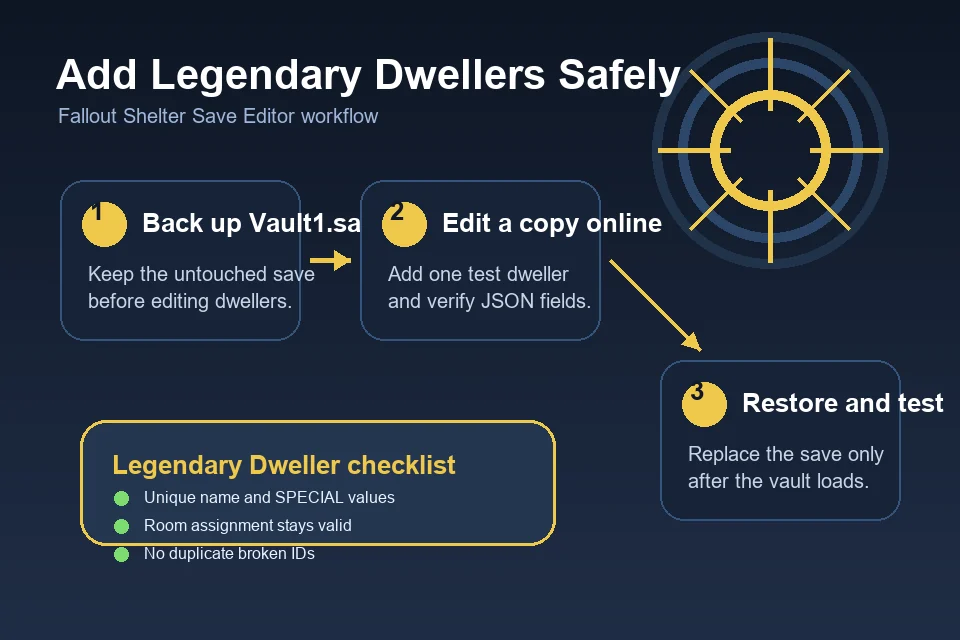
Important: Keep one untouched backup outside the Fallout Shelter folder. If the edited save fails, restore that backup before trying again. Re-editing a broken file often makes recovery harder.
Before You Edit: Find the Right Vault File
Fallout Shelter uses vault files such as Vault1.sav, Vault2.sav, and Vault3.sav. The number usually matches the vault slot in the game. If your legendary dweller edit does not appear, you may have edited the wrong slot or restored the edited file to the wrong platform folder.
| Platform | What to check before editing | Related guide |
|---|---|---|
| PC / Bethesda version | Close the game, copy the active Vault*.sav file, and keep a backup outside the game folder. |
Save file locations |
| Steam | Disable Steam Cloud during testing so an older save does not overwrite the legendary dweller change. | PC and Steam guide |
| Android | Copy the vault out of Android/data first. Newer Android versions may hide this folder from normal file managers. |
Android guide |
| iOS | Extract the save through a device backup or app container workflow, then restore the edited file carefully. | iOS guide |
If you are not sure where your save is stored, start with the Fallout Shelter save file locations guide. The editor can only change the file you give it; it cannot know whether that file is the active vault on your device.
Step-by-Step: Add a Legendary Dweller Safely
-
Close Fallout Shelter completely Do not edit while the game is open. The game can rewrite the save on exit and erase your edited legendary dweller.
-
Copy the vault save to a backup folder Make a folder such as
FalloutShelter-backup-before-legendary-dwellerand copy the originalVault1.savinto it. -
Open a working copy in the save editor Use the browser-based Fallout Shelter Save Editor with the copied file, not the only version of your save.
-
Edit one dweller first Start by modifying an existing dweller into the legendary dweller profile you want. This is safer than cloning several new records at once.
-
Download and restore the edited save Replace the active vault file only after the editor downloads the modified
.sav. Keep the untouched backup separate. -
Launch the game and verify the vault Check that the dweller appears, room assignments work, and the vault can save again. Then repeat for more edits if needed.
Practical limit: Add one or two legendary dwellers, test, and then continue. Batch-editing dozens of records makes it harder to know which value broke the save.
Dweller Fields to Verify Before Restoring the Save
Different editor interfaces expose different fields, but the same principle applies: every legendary dweller should still look like a valid Fallout Shelter dweller record. If you use the save decryptor for manual JSON inspection, be extra careful not to remove commas, brackets, or nested values.
Name, gender, and appearance
Names are usually safe to edit, but avoid unusual control characters or huge text strings. If you are creating a known legendary character, keep the visible name readable and test the vault before editing appearance values heavily.
SPECIAL stats and level
Legendary dwellers often have strong SPECIAL values, but extreme numbers can create odd behavior. If your goal is a stable vault, keep stats within normal gameplay expectations and avoid mixing maxed stats with impossible health or training states in the same first edit.
Outfit, weapon, and inventory references
Broken equipment references are a common reason a modified dweller behaves strangely. If the editor lets you choose items from known lists, prefer those options over typing unknown IDs manually. If you must use JSON, copy the structure from an existing valid dweller or item entry.
Room assignment and wasteland state
A dweller can be inside a room, waiting at the vault door, exploring, returning, or dead. Before adding a legendary dweller, move the original dweller to a simple state when possible: alive, inside the vault, and not in the middle of a quest or wasteland timer.
Platform Notes for Legendary Dweller Edits
The legendary dweller edit itself is similar across platforms, but the restore step changes. Most failed edits happen because the edited file never becomes the active save.
| Problem | Likely cause | Safer fix |
|---|---|---|
| Dweller appears once, then disappears | Cloud sync restored an older save | Disable cloud sync during testing, restore the edited save again, then re-enable sync after the game loads correctly. |
| Edited save does not load | Invalid field, broken JSON, or corrupted download | Restore the untouched backup and repeat with one smaller change. |
| No change appears in game | Wrong vault slot or wrong folder | Confirm whether the active slot is Vault1.sav, Vault2.sav, or Vault3.sav. |
| Android save is missing | Android 11+ storage restrictions | Follow the Android save editor guide to copy the file before editing. |
Steam players should be especially careful. Steam Cloud can make it look like the editor failed even when the edited save was valid. The PC and Steam save editor guide explains how to test locally before letting cloud sync run again.
Troubleshooting Missing or Broken Legendary Dwellers
The legendary dweller does not show up
First check the vault slot. If you loaded Vault2.sav in the editor but opened Vault 1 in the game, the edit will not appear. Next, check whether your platform restored a cloud copy. Finally, repeat the edit with a smaller change to an existing dweller to confirm the save path is correct.
The game crashes or returns to the vault list
Restore your untouched backup immediately. Then edit only one value category at a time: first the name, then stats, then outfit or weapon. If a crash appears after equipment edits, revert that part and use a known valid item option instead of manual IDs.
The dweller is alive but stuck or invisible
This usually points to assignment or state data. Move the original dweller to a normal vault room before editing, avoid quest or wasteland states, and do not copy a dweller record from another save unless you understand all linked IDs.
You want many legendary dwellers
Do it in rounds. Add a few, launch the game, let it save, close the game, and back up the new working state. This gives you recovery points instead of one large risky edit.
FAQ
Can a Fallout Shelter save editor add legendary dwellers?
Yes. Use the editor on a copied vault file, modify or add a dweller carefully, download the edited save, and restore it to the correct vault slot. The safest first test is editing an existing dweller record rather than creating many new ones.
Is it safe to add legendary dwellers on Steam?
It can be safe if you control Steam Cloud. Close the game, back up the save, temporarily disable cloud sync, restore the edited file, test the vault, and only then decide whether to re-enable cloud sync.
Should I edit JSON directly to create a legendary dweller?
Manual JSON editing is useful for advanced users, but it is easier to break the save. If the normal save editor interface can change the dweller field you need, use that first. If you use JSON, keep a backup and change one record at a time.
Can I copy a legendary dweller from another vault?
Sometimes, but it is riskier than editing an existing dweller because copied records may include linked IDs, equipment, quest, or room state values from another save. If you try it, test with one copied record and keep the original vault backup untouched.
Final Recommendation
The best way to add legendary dwellers with a Fallout Shelter save editor is slow and reversible: back up first, edit a copy, change one dweller, restore the correct vault file, and confirm the game can load and save. Once that works, repeat the process in small batches.
If anything looks wrong, stop editing the broken file. Restore the clean backup and repeat with fewer changes. A careful backup workflow is faster than rebuilding a vault after a corrupted save.