Repair Fallout Shelter Save: Fix Vault1.sav Not Loading
If your Fallout Shelter save will not load, disappears from the vault list, crashes after editing, or keeps reverting to an older version, do not keep overwriting the same file. The safest repair path is to freeze the current folder, identify whether the problem is the active Vault1.sav, a cloud conflict, or a risky edit, then restore from the cleanest backup before testing small changes again.
What This Guide Covers
Quick Diagnosis: What Kind of Save Problem Do You Have?
The phrase repair Fallout Shelter save can mean several different problems. The correct fix depends on what the game is doing, so start with the symptom instead of immediately editing the file again.
| Symptom | Most likely cause | First safe action |
|---|---|---|
| Vault slot is missing | The active Vault#.sav is missing, renamed incorrectly, in the wrong folder, or unreadable. |
Copy the folder, then check for a matching Vault#.sav.bkp backup before changing anything. |
| Game crashes when opening one vault | The active save may contain invalid values, broken dweller state, bad manual JSON, or an interrupted write. | Restore a clean backup copy and repeat only the smallest edit that you can verify. |
| Edited values disappear after launch | Steam Cloud, mobile cloud save, or a second device replaced the edited local file. | Turn off sync temporarily, restore the edited local file, launch once, then choose the correct copy if a conflict appears. |
| Editor cannot open the file | The file may not be a Fallout Shelter vault save, may be encrypted in an unsupported state, or may be truncated. | Try the original backup file. If only the active file fails, do not keep editing that broken copy. |
| Only one device has the good vault | Cloud state and local state are out of sync. | Back up the good device's save before allowing another device to sync over it. |
Do not delete the only file that still might work. Before renaming backups, clearing cloud data, reinstalling the app, or running another editor pass, copy the entire save folder to a safe location such as Desktop or Documents.
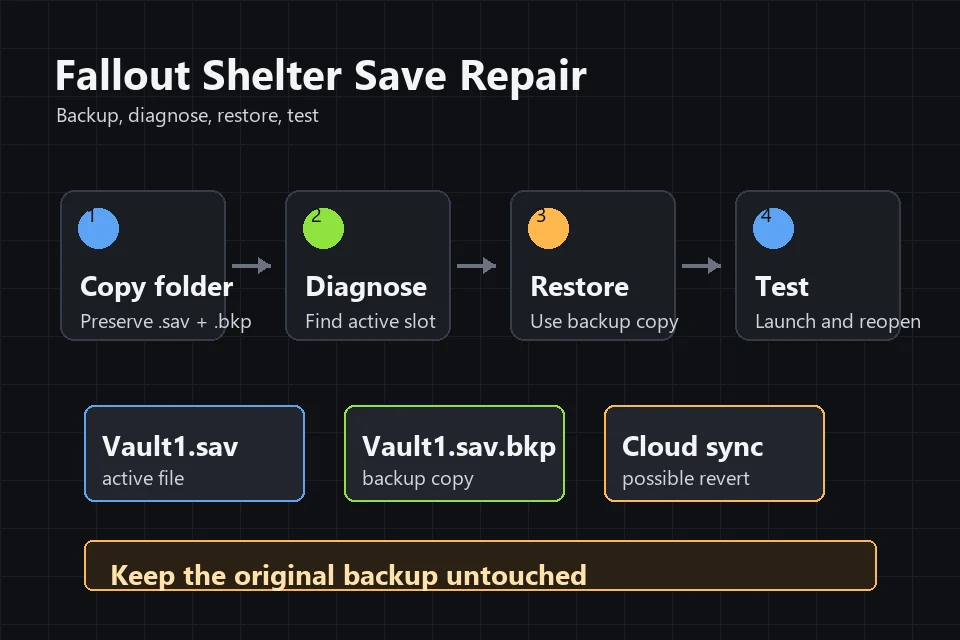
Safe Fallout Shelter Save Repair Workflow
Repair is easiest when you separate preservation, diagnosis, and testing. The goal is not to make every possible change at once; it is to find the last known good vault file and prove the game can load it again.
-
Close Fallout Shelter completely Exit the game before touching
.savfiles. On Steam, also wait for sync to finish, then consider disabling Steam Cloud while you repair the local folder. -
Copy the entire save folder Do not copy only
Vault1.sav. Save the matching.sav.bkpfiles and any other slot files too, because the backup may be the working copy. -
Identify the vault slot number
Vault1.sav,Vault2.sav, andVault3.savcorrespond to different vault slots. Repair the slot that is actually missing or crashing. -
Test the active file in the browser editor Open a copied
.savin the Fallout Shelter Save Editor. If the editor can read it, export a fresh copy after making no changes or one tiny safe change, then test that file in the game. -
Restore from the backup only on a copy If the active file is broken, copy
Vault1.sav.bkpto another folder, rename the copy toVault1.sav, and restore that copy. Leave the original backup untouched. -
Launch, save, close, and reopen A repaired vault should survive more than the first launch. Open it, confirm the slot loads, let the game save, close it, and reopen before making more edits.
If you are not sure where the files live, use the Fallout Shelter save file locations guide. PC and Steam players should also review the PC and Steam save editor guide because cloud sync can make a good repair look like it failed.
How to Restore Vault1.sav.bkp Safely
Many Fallout Shelter folders contain backup files such as Vault1.sav.bkp. Community recovery threads often recommend renaming the .bkp file back to .sav when the active vault is missing or corrupted, and the Steam community describes the same general backup pattern for PC folders. That advice can work, but the dangerous version is renaming your only backup in place.
Recommended .bkp restore sequence
- Close Fallout Shelter.
- Copy the full save folder to a dated backup location.
- Inside the working folder, rename the broken active file from
Vault1.savto something likeVault1_broken_do_not_delete.sav. - Copy
Vault1.sav.bkpto the same folder. - Rename the copied backup to
Vault1.sav. - Launch the game with cloud sync controlled and test the vault slot.
For Steam, the usual save folder is under %LOCALAPPDATA%\FalloutShelter. SteamDB's Fallout Shelter Cloud Saves page lists the same broad Steam Cloud storage area for the game, and Bethesda notes that Steam players can use Steam Cloud for vault saves. That means a local backup restore can still be overwritten if Steam decides the cloud copy is newer.
Practical rule: never make the backup file the only remaining file. Keep one untouched folder copy, one copied .bkp restore candidate, and one active .sav that you test in the game.
Steam, Android, and iOS Cloud Conflict Checks
Cloud sync is helpful during normal play and risky during repair. Bethesda's support pages say Fallout Shelter supports cloud saving on Android and iOS when the Cloud checkbox is enabled, and Bethesda's PC note says Steam players can use Steam Cloud. If a repaired save keeps reverting, treat cloud state as the main suspect.
| Platform | Recovery risk | Safer check |
|---|---|---|
| Steam | Steam Cloud may restore the older vault after you replace the local file. | Disable Steam Cloud for Fallout Shelter while repairing, test locally, then re-enable only after the recovered vault loads. |
| Android | The device copy and cloud copy may differ, and Android/data access can be restricted on newer Android versions. | Back up the local Android/data/com.bethsoft.falloutshelter/files folder before toggling cloud or reinstalling. |
| iOS | iCloud backup and app sandbox access can make it hard to compare files directly. | Use the vault list cloud restore flow only after you know which device or backup has the copy you want. |
| Multiple devices | An older second device can upload a stale vault after the repaired device is fixed. | Keep the repaired device offline or cloud-disabled until the good local file is confirmed and backed up. |
Bethesda's mobile restore instructions describe using the Cloud checkbox on the original vault slot and resolving a conflict prompt when a local save already exists. During repair, read that prompt carefully. If you choose the wrong side of the conflict, you can replace the recovered file with the broken or older copy. For a fuller backup-first workflow, see the cloud save, backup, and transfer guide.
Recovering After a Bad Save Editor Change
If the problem started after using a Fallout Shelter save editor, assume one of the changes was too broad or too risky. The editor can write a valid save format, but the game still expects internal records to make sense: dwellers need valid states, rooms need consistent assignments, quest and wasteland data should not be half-edited, and resource totals should stay in ranges the game can display and save again.
Edits to roll back first
- Extreme resource totals: use the max values guide and test practical values instead of very large numbers.
- Manual JSON changes: if you used the save decryptor, verify that the JSON still parses and that braces, arrays, and quotes were not damaged.
- Dweller state changes: undo edits to quest, death, pregnancy, wasteland, room assignment, copied IDs, or equipment records if the crash started after a dweller edit.
- Batch edits: revert to backup, then edit only one category such as caps, one dweller, or one inventory field.
- Cloud replacement: if the edited value briefly appeared and then vanished, the file may be fine but cloud sync replaced it.
A good repair test is intentionally boring: restore a known good vault, add a small number of caps, download the edited file, replace the correct slot while the game is closed, launch, save, close, reopen, and confirm the value persists. If that works, the tool path is fine and the original failure was likely the size or category of the edit.
What If You Have No Backup?
No backup makes recovery less predictable. Still, avoid reinstalling or clearing data immediately because that can remove the only local copy left. First look for .sav.bkp files, copied vault folders, phone file manager exports, desktop downloads from previous editor sessions, Steam Cloud conflict copies, iOS backup exports, or another device that still opens the vault.
If the active file opens in the browser editor, save a fresh copy before making any changes. Then use very small repair edits only if you know what field caused the issue. If the file cannot be opened by the game or editor and no backup or cloud copy exists, a full repair may not be possible. At that point, preserving the broken file for future attempts is better than repeatedly overwriting it.
How to Prevent the Next Broken Vault
The best Fallout Shelter save repair is the one you never need. Keep a short recovery routine before each edit session:
- Create a dated folder such as
FalloutShelter-backup-2026-06-10. - Copy every
Vault#.savandVault#.sav.bkpfile into that folder. - Edit a working copy, not the only live save.
- Make one category of changes per test: resources, dwellers, rooms, recipes, or wasteland, not all of them.
- After a successful test, make a new backup of the edited working version.
- Document whether Steam Cloud, iCloud, or Android cloud save was on or off during the test.
For normal editing, start with the complete save editor tutorial. For platform-specific file access, use the Android save editor guide, the iOS guide, or the PC and Steam guide. Repair becomes much simpler when file location and cloud state are already under control.
Useful Official References
For cloud behavior, use Bethesda's support notes as the primary source. Bethesda explains that Android and iOS vaults can be backed up through the Cloud checkbox, and its restore instructions describe selecting the cloud checkbox for the original vault slot when restoring a mobile vault. Bethesda also confirms that Steam players can use Steam Cloud for Fallout Shelter vaults. SteamDB's Cloud Saves page is useful for checking the PC cloud-save path context.
- Bethesda: Fallout Shelter cloud saving on Android and iOS
- Bethesda: restore a saved vault from the cloud
- Bethesda: Fallout Shelter PC cloud saving
- SteamDB: Fallout Shelter Cloud Saves
FAQ
How do I repair a Fallout Shelter save that will not load?
Close the game, copy the entire save folder, test the active .sav in the editor, and restore from Vault#.sav.bkp or a cloud copy only after preserving the original files. Then test one small edit before making more changes.
Can I rename Vault1.sav.bkp to Vault1.sav?
Yes, but copy it first. Rename a copied Vault1.sav.bkp to Vault1.sav, not your only backup. Keep the original backup untouched until the recovered vault has loaded, saved, closed, and reopened successfully.
Why did my edited save revert after I fixed it?
Cloud sync is the usual reason. Steam Cloud, iOS cloud saves, Android cloud saves, or another device may have uploaded an older copy. Control cloud sync while repairing, compare timestamps, and choose the recovered local file only after testing it.
Can the online save editor fix a corrupted save?
If the editor can open the file, you may be able to export a clean copy or undo the risky value that caused the crash. If neither the game nor the editor can read the file, use a .sav.bkp, cloud copy, or previous manual backup instead.
Should I reinstall Fallout Shelter to repair a vault?
Not as the first step. Reinstalling can remove local files if they are not backed up or cloud-synced. Copy the save folder first, check for .sav.bkp files, and verify cloud state before deleting app data.
Final Recommendation
To repair a Fallout Shelter save, preserve everything first, then make the smallest reversible change. Copy the whole save folder, restore a backup copy instead of editing the broken active file, control cloud sync, and verify the repaired vault through a launch-save-close-reopen cycle. Once the vault is stable, use the editor again with smaller changes and a fresh backup after every successful test.