Fallout Shelter Save Editor PC & Steam: Edit Vault1.sav Safely
If you are using a Fallout Shelter PC save editor or a Fallout Shelter Steam save editor, the editing step is usually easy. The part that causes trouble is choosing the right Vault1.sav file, keeping a clean backup, and stopping Steam Cloud from restoring the old save after you replace it. This guide gives the direct file paths first, then walks through the safest complete workflow.
No PC download is required: copy the correct .sav file and use the browser-based Fallout Shelter save editor. This page owns the PC and Steam workflow; the homepage contains the working editor itself.
What This Guide Covers
Quick Answer: Where Fallout Shelter Saves Are Stored on PC and Steam
For the Bethesda.net or classic PC version, Fallout Shelter usually stores save files here:
PC / Bethesda save path: C:\Users\[YourUsername]\Documents\My Games\Fallout Shelter
For the Steam version, the usual Windows save folder is different:
Steam save path: C:\Users\[YourUsername]\AppData\Local\FalloutShelter
Quick open command: press Win + R, type %LOCALAPPDATA%\FalloutShelter, then press Enter.
The active vault files are normally named Vault1.sav, Vault2.sav, and Vault3.sav. The number matches the vault slot in the game. If you have only one vault, you may only see Vault1.sav. Some folders also contain backup files such as Vault1.sav.bkp. Do not delete those backups while testing an edited save.
Bethesda's own migration instructions list Fallout Shelter's Bethesda save folder under Documents\My Games\Fallout Shelter and the Steam folder under AppData\Local\FalloutShelter. SteamDB's Cloud Saves data also shows the Steam Cloud path using %USERPROFILE%/AppData/Local/FalloutShelter with *.sav files. Those two references are useful because they separate the folder location from the editor itself.
Fallout Shelter PC and Steam Save Editor Workflow
The safest Fallout Shelter PC save editor workflow is to edit a copy, not the only live vault file. Close Fallout Shelter, copy Vault1.sav to your desktop, open that copy in the online Fallout Shelter Save Editor, download the edited file, then replace the original only after you have a backup.
For a Fallout Shelter Steam save editor workflow, add one extra step: pause Steam Cloud before replacing the file. Steam can restore an older cloud version if the local file changes while cloud sync is active. After the edited vault loads correctly, re-enable cloud sync and choose the local file if Steam asks which copy to keep.
PC and Steam Save Editor Decision Checklist
- Use the PC/Bethesda path when your game is not launched through Steam and your saves live under Documents.
- Use the Steam path when the game is installed from Steam or Steam Cloud has ever synced the vault.
- Pause Steam Cloud before replacing the edited file if you have seen old saves return after launch.
- Use the save repair guide if the vault already crashes or only a
.sav.bkpbackup remains.
PC save editor vs Steam save editor: the browser editor is the same, but the file path and sync risk are different. Start with the Fallout Shelter save file locations guide if you are unsure which Windows version owns the vault, then return here for the PC/Steam restore sequence.
Which Fallout Shelter Save File Should You Edit?
Most failed PC edits come from opening the wrong file, not from the editor itself. Before changing resources or dwellers, identify the active slot, copy it away from the game folder, and keep the backup files untouched until the edited vault has loaded successfully.
| File or folder clue | What it means | Safe action |
|---|---|---|
Vault1.sav, Vault2.sav, Vault3.sav |
Active vault slots that Fallout Shelter can load directly. | Edit a copy of the matching slot, then restore it with the exact same filename. |
Vault1.sav.bkp |
Backup file that can rescue a broken active save. | Do not edit it first. Copy it elsewhere before renaming a duplicate to Vault1.sav. |
steamapps\common\Fallout Shelter |
Game installation folder, not the save folder. | Leave it alone and open %LOCALAPPDATA%\FalloutShelter instead. |
| Only one vault appears in game | The active file is usually Vault1.sav, but the slot number can vary. |
Check file modified times after closing the game, then back up every .sav file before editing. |
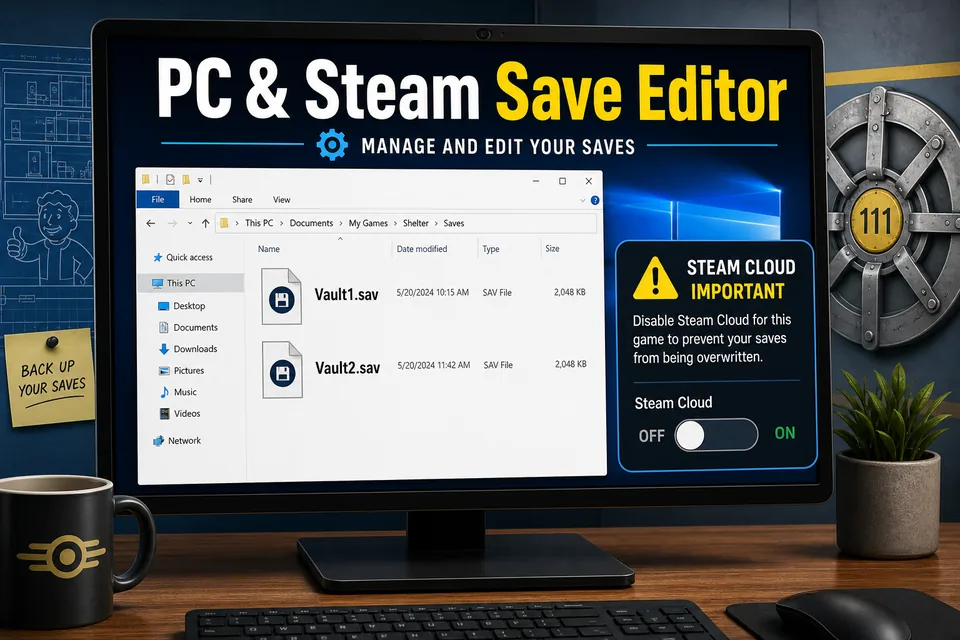
Vault1.sav folder, a separate backup copy, and a short Steam Cloud check before launching the game again.PC, Steam, and Windows Store Versions Compared
Search results often mix three different Windows versions together. That creates confusion because the same editor can read the save file, but the file location and sync behavior are not identical. Treat the game version as the first diagnostic question before you edit anything.
| Version | Default save location | Main risk while editing | Best use case |
|---|---|---|---|
| PC / Bethesda | Documents\My Games\Fallout Shelter |
Editing the wrong vault slot or skipping backups | Simple local editing with direct file access |
| Steam | %LOCALAPPDATA%\FalloutShelter |
Steam Cloud restoring the older save over your edited file | Players who use Steam on one or more PCs |
| Windows Store / UWP | %LOCALAPPDATA%\Packages\BethesdaSoftworks.FalloutShelter_*\LocalState |
Harder folder permissions and platform sync behavior | Players using the Microsoft Store or Xbox Play Anywhere version |
This page focuses on PC and Steam because your search intent is usually different from mobile. Android users often need help accessing Android/data; iOS users need an extraction tool such as iMazing or a backup workflow. PC and Steam users usually already have the file system access they need, but they need a clean sequence so the edited save survives the next launch.
How to Edit a Fallout Shelter PC or Steam Save Safely
The safest workflow is to edit a working copy, never your only copy. This matters even if you plan to make small changes such as caps, lunchboxes, SPECIAL stats, rooms, recipes, or dweller health. A save editor can write a valid file, but extreme values or a wrong restore location can still leave the game unable to load the vault.
-
Close Fallout Shelter completely Exit to desktop and make sure the game is not still running in the background. If you are on Steam, closing the game first also reduces the chance that cloud sync rewrites files during your edit.
-
Open the correct save folder For Steam, press Win + R, enter
%LOCALAPPDATA%\FalloutShelter, and look forVault1.sav,Vault2.sav, orVault3.sav. For PC/Bethesda, openDocuments\My Games\Fallout Shelter. -
Create two backups Copy the target vault to a folder such as Desktop or Documents. Keep one untouched backup named clearly, for example
Vault1_original_pc_backup.sav, and use a second copy as your editable working file. -
Upload the working copy to the online editor Open the Fallout Shelter Save Editor, load the copied
.savfile, then make the changes you actually need. Avoid changing too many unrelated values in one pass. -
Download and rename the edited save The final filename must match the slot exactly, such as
Vault1.sav. Watch for browser-added names likeVault1 (1).savor accidental.jsonextensions. -
Replace the local save while the game is closed Copy the edited file back to the original PC or Steam save folder. Confirm that you are overwriting the active slot file, not just placing the edited file beside it with a different name.
-
Launch once and verify Open Fallout Shelter and check a few obvious values such as caps, Nuka-Cola Quantum, dweller stats, or unlocked rooms. If the vault loads correctly, make a fresh backup of the edited version.
Practical editing limit: For troubleshooting, make one category of edits first. For example, edit caps and lunchboxes, test the vault, then edit dwellers later. When many values change at once, it is harder to identify the one that caused a crash or missing vault.
How to Stop Steam Cloud from Overwriting Your Edited Save
Steam players have one extra step: cloud sync. Bethesda's PC cloud saving note confirms that Steam players can use Steam Cloud to save their vaults. That is convenient for normal play, but it can be frustrating during save editing because Steam may decide the cloud copy is the version to keep.
The conservative workflow is to disable Steam Cloud temporarily, edit and test the local save, then re-enable it only after the edited vault opens correctly. In Steam, right-click Fallout Shelter in your Library, open Properties, go to General, and turn off the Steam Cloud option for the game. Close Steam fully before replacing files if you have seen it restore old saves before.
When to Re-enable Steam Cloud
Re-enable Steam Cloud only after you have launched the game, confirmed the edited vault is visible, and exited normally. When Steam asks about a cloud conflict, read the timestamps carefully. If your edited local save is the version you want, choose the local save. If you are unsure, cancel, back up both versions if possible, and compare file timestamps before continuing. The broader Fallout Shelter cloud save guide covers local-vs-cloud decisions and cross-device transfer checks in more detail.
What If You Use Multiple PCs?
If you play Fallout Shelter on two computers, do not edit on one PC while the other PC still has an older cloud copy waiting to sync. Edit on one machine, verify the save, let Steam upload the accepted version, then open the game on the second machine. This sequence reduces the chance of a conflict where the second PC reintroduces an outdated vault.
Troubleshooting Common PC and Steam Save Editor Problems
The Edited Save Does Not Show in the Game
Check the filename first. Fallout Shelter expects the slot name to remain exact: Vault1.sav, Vault2.sav, or Vault3.sav. Then check the folder. Steam users should be in %LOCALAPPDATA%\FalloutShelter, not the installation folder under steamapps\common. The installation folder contains the game files; the save folder contains your vault files.
If you downloaded the edited file from a browser, inspect the extension carefully. Windows may hide known extensions, so a file that looks like Vault1.sav could actually be Vault1.sav.json or Vault1 (1).sav. Turn on file extensions in File Explorer before replacing the original save.
Steam Restored the Old Save
This usually means Steam Cloud synced after the file replacement. Close the game, disable Steam Cloud for Fallout Shelter, restore the edited save again, launch the game once, exit normally, then decide whether to re-enable cloud sync. If you still have the untouched backup, keep it separate until the edited version has worked for a few sessions.
The Vault Crashes After Editing
Restore your original backup and repeat the edit with smaller values. Extremely high resource totals, invalid dweller states, or too many simultaneous changes can make troubleshooting difficult. A practical range is to keep SPECIAL stats between 1 and 10 and use resource values that the game UI can handle comfortably.
You Only See .bkp Files
A .bkp file is a backup file, not the normal active save. If the active .sav file is missing or broken, copy the backup file to a safe folder first, then rename the copy from something like Vault1.sav.bkp to Vault1.sav. Do not rename your only backup in place until you have copied it.
FAQ
Where is the Fallout Shelter Steam save file?
The usual Steam save file location on Windows is C:\Users\[YourUsername]\AppData\Local\FalloutShelter. The shortcut is %LOCALAPPDATA%\FalloutShelter. Look for Vault1.sav, Vault2.sav, or Vault3.sav.
Can I use this as a Fallout Shelter PC save editor and Steam save editor?
Yes. The browser editor can read the same .sav vault format. The main difference is where you find and restore the file. PC/Bethesda usually uses Documents\My Games\Fallout Shelter, while Steam uses AppData\Local\FalloutShelter.
Should I use the editor on Vault1.sav or Vault1.sav.bkp?
Edit a copied version of Vault1.sav. Keep Vault1.sav.bkp untouched as a recovery file. If the edited save fails, restore from the backup instead of repeatedly editing a broken active save.
Do I need to download a Fallout Shelter save editor for PC?
No. You can copy your .sav file and use the online editor in your browser. The editor runs locally in the browser, so the save is processed on your device instead of being uploaded to a server.
Why did my edited Fallout Shelter Steam save revert?
Steam Cloud probably synced an older version after you replaced the file. Temporarily disable Steam Cloud for Fallout Shelter, restore the edited save again while the game is closed, test it locally, then re-enable cloud sync after the edited vault loads.
Why does Google show the homepage for PC save editor searches?
The homepage contains the actual online editor, so it can rank for broad save editor queries. This PC and Steam guide is the better page when you need the Windows folder path, backup sequence, or Steam Cloud overwrite prevention before using the editor.
Can I move a PC save to Steam?
Yes. Copy the .sav and, if available, .sav.bkp files from the PC/Bethesda folder into the Steam folder. Bethesda's migration instructions describe this exact type of move for Fallout Shelter. Back up both folders before overwriting anything.
Does this guide cover Android or iOS saves?
This page is focused on PC and Steam. For phone-specific file access, use the Android save editor guide or the iOS save editor guide.
Why can I find Fallout Shelter installed but not the save file?
The installation folder is separate from the save folder. Steam usually installs the game under steamapps\common, but saves live under %LOCALAPPDATA%\FalloutShelter. The PC/Bethesda version usually stores saves under Documents\My Games\Fallout Shelter.
Can I edit a Steam save while Steam is open?
It is safer to close the game and pause Steam Cloud first. Steam can compare local and cloud copies after the game exits, so replacing the file while Steam Cloud is active increases the chance that the older cloud copy comes back.
Can I load a Steam Fallout Shelter save on my phone?
A manual transfer may work because the platforms use the same vault save format, but Steam Cloud does not automatically sync a PC vault to Android or iOS. Back up both devices, copy the edited .sav file, then follow the Android restore workflow or iOS restore workflow for the destination device.
Final Recommendation
For most PC players, the best Fallout Shelter save editor workflow is straightforward: find the right Vault1.sav, make a clean backup, edit a working copy, and replace the original while the game is closed. Steam players should add one more safeguard by disabling Steam Cloud until the edited vault has loaded successfully.
If something goes wrong, do not keep editing the broken file. Restore the untouched backup, repeat the process with smaller changes, and verify the folder path before launching the game again. The fastest recovery is almost always a clean backup plus a careful second pass.
For a full recovery checklist covering broken Vault1.sav files, .sav.bkp restores, and cross-platform cloud conflicts, use the Fallout Shelter save repair guide before replacing more files.