What This Guide Covers
Quick Answer: Where Fallout Shelter Saves Are Stored on Android
On most Android installs, Fallout Shelter stores vault save files in this app-specific external storage folder:
Android save path: /storage/emulated/0/Android/data/com.bethsoft.falloutshelter/files
Alternative path shown by some file managers: /sdcard/Android/data/com.bethsoft.falloutshelter/files
The files you are looking for are usually named Vault1.sav, Vault2.sav, and Vault3.sav. Each file maps to one vault slot in the game. If you only created one vault, you may only see Vault1.sav. If you created multiple vaults, back up every .sav file before editing so you do not accidentally overwrite the wrong slot.
The editing workflow is simple once you have the file: copy the .sav file out of the Android data folder, open it with the free online Fallout Shelter Save Editor, download the modified save, then copy it back to the same folder while Fallout Shelter is fully closed.
This guide is specifically for players searching for the Fallout Shelter Android save file location, trying to fix a Fallout Shelter save file not found Android problem, or looking to edit Fallout Shelter save file Android without root on newer devices.
Pick the least risky route: use a file manager when Android grants access to Android/data, use PC transfer when the phone browser or file picker is awkward, and use ADB only as a fallback. You do not need a separate Fallout Shelter save editor APK; the important step is preserving an untouched Vault1.sav before editing the working copy.
Fallout Shelter Android Save Editor Workflow
A Fallout Shelter Android save editor workflow has two separate jobs: Android must let you copy the vault file, and the browser editor must edit that file safely. If you can see Vault1.sav, copy it to a normal folder such as Downloads first. Do not edit the only copy inside Android/data.
After the copy is safe, open the online Fallout Shelter Save Editor, load the copied .sav, make one group of changes at a time, and download the edited file. Keep the original backup and restore the edited file with the exact same name. This is also the safest route for players looking for a Fallout Shelter save editor APK alternative, because no unofficial APK or modded app is required.
Android Save Editor Decision Checklist
- Use a file manager first when it can request access to
Android/data/com.bethsoft.falloutshelter/files. - Use PC transfer when mobile browsers or phone file pickers make upload and download confusing.
- Use ADB only as a fallback when normal file access fails and you already understand USB debugging.
- Avoid unofficial APKs because the browser editor can edit the copied
.savwithout replacing the official game app.
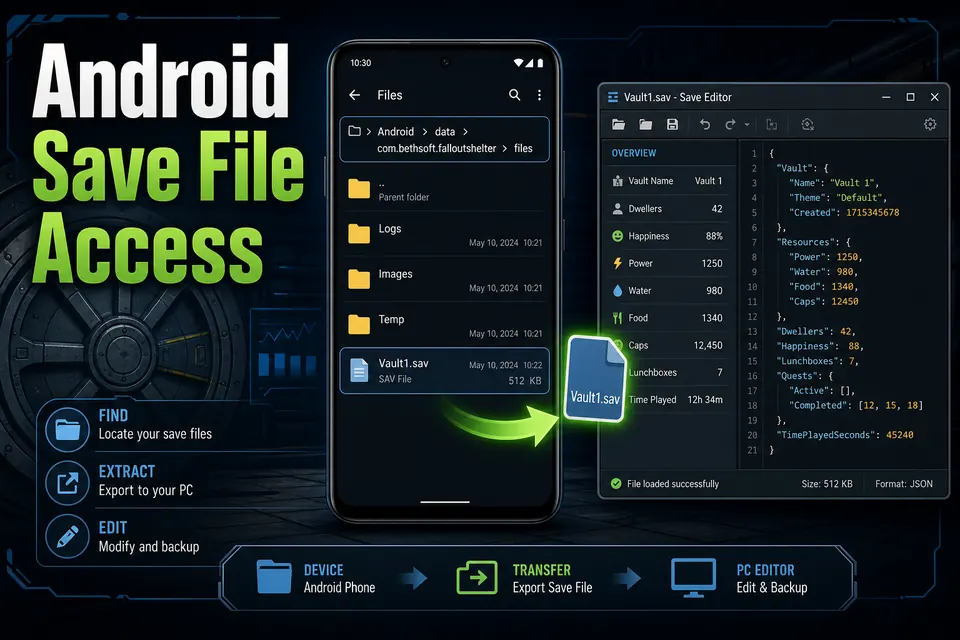
Vault1.sav, backing it up, and moving a copy into the browser-based editor.Why the Fallout Shelter Folder Is Missing on Android 11+
If your file manager shows Android/data as empty, the save is not necessarily gone. Android changed how app-specific storage works, especially from Android 11 onward. Google's Android storage documentation explains that files in another app's app-specific external directory are not accessible to other apps on Android 11 or higher. In practice, that means a normal file manager may be blocked from browsing com.bethsoft.falloutshelter, even though Fallout Shelter can still read and write its own saves.
This is why older Fallout Shelter Android save editor tutorials often feel wrong now. They assume you can open any file manager, tap Android, tap data, and copy the save. That still works on some Android 9 and Android 10 devices. On Android 11, Android 12, Android 13, Android 14, and Android 15, access depends on the phone brand, system file picker behavior, and the file manager app you use.
Important: Do not uninstall Fallout Shelter while troubleshooting. App-specific files can be removed when an app is uninstalled, so uninstalling the game can delete the vault you are trying to recover.
Method 1: Use a File Manager That Can Request Android/data Access
This is the best first method because it does not require root, a command line, or a full phone backup. The goal is to use a file manager that can hand off folder access to Android's system file picker. The exact app that works varies by device, so treat the file manager as a tool, not the actual editor.
-
Close Fallout Shelter completely Open the recent apps screen and swipe Fallout Shelter away. If the game keeps running in the background, it may overwrite your restored file later.
-
Open a capable file manager Try a trusted file manager with storage access prompts. If your current app shows
Android/dataas blank, test another one before assuming the save is unavailable. -
Navigate to the Fallout Shelter package folder Look for
Android/data/com.bethsoft.falloutshelter/files. If Android asks you to grant access to the folder, approve the prompt. -
Copy the save to Downloads Copy
Vault1.savor the vault slot you want to edit intoDownloads. Do not move it. Keeping the original in place gives you a recovery point. -
Make a second backup Rename one copy to something clear, such as
Vault1_original_android_backup.sav. This backup should never be edited.
Once the file is in a normal folder like Downloads, you can upload it into the browser-based editor from your phone, or send it to your computer for easier editing. Android browser file pickers usually handle files in Downloads much more reliably than files buried in Android/data.
Method 2: Transfer Vault1.sav to PC and Edit Online
The PC method is often more comfortable if you plan to make several edits, compare backups, or use a keyboard and mouse. It also avoids mobile browser quirks. You are not converting the save to a PC-only format; Fallout Shelter uses the same basic .sav vault file format across Android and PC workflows.
USB Transfer Workflow
-
Copy the Android save to Downloads first Use Method 1 to place
Vault1.savin a user-accessible folder. This makes Windows File Explorer more likely to see it over USB. -
Connect the phone by USB Choose File Transfer or MTP mode from the Android USB notification. Charging-only mode will not expose phone storage.
-
Copy the save to your desktop Place the file in a folder with a clear name, such as
Fallout Shelter Android Backup. Keep one untouched backup and one editable working copy. -
Edit with the online save editor Open Fallout Shelter Save Editor, load the working copy, make conservative changes, then download the edited file.
-
Return the edited file to Android Copy the edited
Vault1.savback to the phone, then use your file manager to replace the original in the Fallout Shelter files folder.
If USB is unreliable, use cloud storage only for the temporary copy. Upload the copied save from Downloads, download it on PC, edit it, and then send it back to the phone. Do not treat cloud storage as your only backup. Keep a local original copy too.
Method 3: Use ADB When File Managers Fail
ADB is the fallback for users who are comfortable with developer tools. It does not guarantee access on every device because Android's storage rules still apply, but it is useful when a phone's file manager is the weak point. This method is for advanced users; if you are not comfortable with command prompts, use the file manager and PC transfer methods first.
Best fit: ADB is worth trying when the game clearly has a saved vault, file managers show the folder as empty, and you already have USB debugging enabled or know how to enable it safely.
ADB Pull Example
-
Install Android platform tools Use Google's official Android SDK Platform Tools package, then open a terminal in that folder.
-
Enable USB debugging On the phone, enable Developer Options, turn on USB debugging, connect by USB, and approve the computer trust prompt.
-
Check that the device is visible Run
adb devices. If the device says unauthorized, unlock the phone and approve the prompt. -
Try pulling the save folder Run
adb pull /sdcard/Android/data/com.bethsoft.falloutshelter/files ./fallout-shelter-android-save. If Android blocks the path, fall back to copying the save through the system file picker.
ADB should be treated as a recovery route, not the default route. The safest successful workflow is still: extract a copy, preserve the original, edit the copy, then restore only after checking the filename and vault slot.
How to Put the Edited Save Back Safely
Restoring the file is where most mistakes happen. Users edit the correct save, then put it back while the game is still running, or rename it slightly wrong. Fallout Shelter expects the original slot filename. If you edited slot one, the final file should be exactly Vault1.sav, not Vault1 (edited).sav, Vault1.sav.json, or vault1.sav.
-
Force-close Fallout Shelter Do this before replacing the file. If the game is still in memory, it may save old data over your edited file.
-
Verify the edited filename Use the exact vault slot name:
Vault1.sav,Vault2.sav, orVault3.sav. -
Replace the original in the files folder Copy the edited save into
Android/data/com.bethsoft.falloutshelter/files. Approve overwrite only after confirming you have an untouched backup elsewhere. -
Launch the game and check the vault Open Fallout Shelter, load the matching vault slot, and confirm the changes. If anything looks wrong, close the game and restore your backup.
Android Methods Compared
| Method | Best For | Requires Root? | Main Risk |
|---|---|---|---|
| File manager | Most Android users who can grant folder access | No | Some devices show Android/data as empty |
| PC transfer | Careful editing, backup comparison, larger changes | No | USB mode or cloud copy mistakes |
| ADB | Advanced troubleshooting when file managers fail | No, but debugging is required | Path access may still be blocked on some builds |
| Root file browser | Already-rooted devices only | Yes | Device security, warranty, and accidental system changes |
Troubleshooting Common Android Save Editor Problems
The com.bethsoft.falloutshelter folder is missing
First, open Fallout Shelter and make sure you have created and saved at least one vault. Then close the game and check the folder again. If the folder still does not appear, your file manager may be blocked by Android's storage restrictions. Try another file manager, use the system file picker when prompted, or copy the save by USB after moving it to Downloads.
The edited save does not show in the game
Check the filename and slot. A slot-one save must be named Vault1.sav. Also confirm that the edited file replaced the original in the Fallout Shelter files folder, not just a copy in Downloads. If the game was running during the replacement, close it fully and repeat the restore step.
The vault crashes after editing
Restore your untouched backup, then edit again with smaller values. Extremely high resource totals or too many edits at once can make troubleshooting harder. A practical approach is to edit caps, lunchboxes, or a few dweller stats first, test the vault, then make additional changes later.
The save opens on PC but not on Android
This usually means the file was renamed incorrectly, copied to the wrong folder, or overwritten by a cloud or background save. Keep Android cloud save behavior in mind and always test with the game fully closed before and after file replacement.
FAQ
Where is the Fallout Shelter save file on Android?
The usual path is /storage/emulated/0/Android/data/com.bethsoft.falloutshelter/files. Some file managers show the same location as /sdcard/Android/data/com.bethsoft.falloutshelter/files. Your vault files are normally named Vault1.sav, Vault2.sav, and Vault3.sav.
Can I use a Fallout Shelter Android save editor without root?
Yes. Most users should avoid root. Copy the .sav file out with a file manager or PC transfer, edit the copy with the online save editor, then restore the edited file to the original folder. Root is only useful if you already have a rooted device and understand the risks.
Do I need a Fallout Shelter save editor APK on Android?
No. A separate APK is not required. Copy the .sav file out of the Fallout Shelter folder, use the online editor in your browser, then restore the edited file. This avoids installing unofficial APK files and keeps the original game app unchanged.
Why does Android say the data folder is empty?
Android 11 and newer limit access to other apps' app-specific folders. The save may still exist, but your file manager may not be allowed to display it. This behavior comes from Android storage privacy changes, not from the save editor.
Can I edit the save directly on my Android phone?
Yes, if you can copy the save to a normal folder such as Downloads. Open the online editor in your mobile browser, select the copied .sav file, download the edited version, then copy it back to the Fallout Shelter files folder.
Does this work as a Fallout Shelter Android 13 save editor?
Yes, the editor can read the same .sav file after you extract it. The Android 13 challenge is file access, not save compatibility. If Android 13 hides the app data folder, copy the save through a file manager with folder permission support, PC transfer, or ADB.
Does the online editor upload my Android save file?
No. The editor runs locally in your browser. Your save file is processed on your device, which is why the site can work without account registration or a server-side upload step.
Should Android users open the editor on the phone or on PC?
Either works after the save is copied to a normal folder. Use the phone if the file picker can select Vault1.sav from Downloads. Use PC if you want easier backups, filename checks, or transfer testing before copying the edited save back to Android.
Can I transfer a Fallout Shelter Android save to PC or Steam?
Yes. Copy the Android .sav file to your computer and place it in the correct PC or Steam save location. For all platform paths, use the Fallout Shelter save locations guide. If you are restoring the save into Steam, follow the PC and Steam save editor guide so Steam Cloud does not overwrite the transferred vault. For cross-device backup and cloud conflict checks, use the cloud save and transfer guide.
Final Recommendation
For most players, the best Fallout Shelter Android save editor workflow is: copy Vault1.sav out with a file manager, keep a clean backup, edit a working copy in the browser, and restore the edited file only after Fallout Shelter is closed. This avoids root, avoids APK download risks, and keeps your original vault recoverable.
If Android 11 or newer blocks the folder, do not assume your save is lost. Try a different access method before doing anything destructive. The file usually still exists; Android is just preventing casual browsing of another app's data folder.