Fallout Shelter Cloud Save, Backup, and Transfer Guide 2026
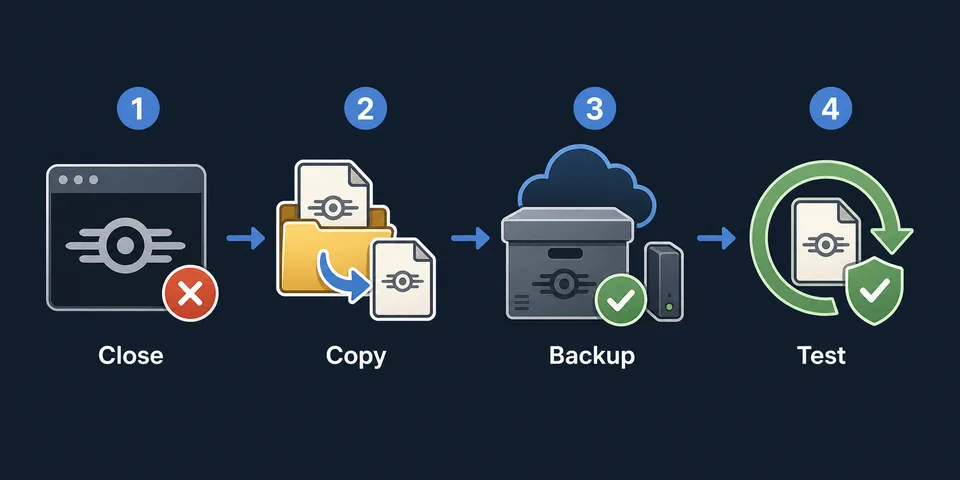
Before you edit, move, or restore a Fallout Shelter vault, make a manual backup first. Cloud save can help on Steam, Android, and iOS, but it can also restore an older copy if you choose the wrong conflict prompt or reopen the game on another device. The safest workflow is simple: close the game, copy every Vault#.sav and Vault#.sav.bkp, edit a working copy, then test the result before trusting sync again.
What This Guide Covers
Quick Answer: Do Not Treat Cloud Save as Your Only Backup
Fallout Shelter cloud save is useful when it works, but it is not the same thing as a clean manual archive. A cloud slot can sync the latest good vault, the latest broken vault, or an older copy from another device. If you are about to use a Fallout Shelter save editor, move a vault to another machine, restore after a reinstall, or fix a missing save, keep a separate folder that cloud sync cannot overwrite.
The most reliable backup is a dated copy of the actual save files. On PC and Steam, that usually means copying Vault1.sav, Vault2.sav, Vault3.sav, and any matching .sav.bkp files from the save folder. On Android and iOS, the exact access method depends on device permissions, file manager access, backup tools, and whether the vault is available through the in-game cloud slot.
Important: Bethesda's mobile restore guidance says that a cloud restore can show a save conflict when a local save already exists. If you choose the wrong side of that conflict, the copy you wanted to keep can be replaced.
Transfer decision: use cloud save for a supported sync or restore prompt, but use a dated manual backup when you are moving a vault between platforms or preparing an edit. Cloud sync is not the same as a cross-platform Vault1.sav transfer; first prove which copy is good, then follow the destination platform's file-access steps.
How Cloud Save Works by Platform
The cloud behavior you should expect depends on where you play. The same editor workflow may involve direct file replacement on Windows, a file manager or USB copy on Android, or a backup extraction tool on iOS. The table below separates official cloud behavior from the manual backup step you should still do before editing.
| Platform | Cloud behavior to know | Manual backup to keep |
|---|---|---|
| Steam on Windows | Steam Cloud can sync Fallout Shelter saves. SteamDB lists the Windows cloud path as %USERPROFILE%/AppData/Local/FalloutShelter for *.sav and *.dat files. |
Copy the whole %LOCALAPPDATA%\FalloutShelter folder before replacing a file or launching Steam again. |
| Classic PC / launcher | Cloud behavior depends on the launcher and installation. Many repair workflows are direct local file workflows. | Use the save file location guide to find the correct folder, then copy all vault slots and backup files. |
| Android | Mobile vaults can use the in-game cloud checkbox, but Android file access can be restricted on newer versions. | When accessible, copy Android/data/com.bethsoft.falloutshelter/files or export the vault with a trusted file manager before editing. |
| iOS / iPadOS | Cloud restore is slot-based. Direct file access usually requires Finder/iTunes File Sharing, iMazing, or backup extraction. | Export the app data or vault file before restoring from cloud or replacing a save through a backup tool. |
For platform-specific file paths, use the PC and Steam guide, the Android save editor guide, or the iOS guide. This page focuses on the backup and cloud decision layer that applies before and after those platform steps.
The Safe Backup Routine Before Editing Vault1.sav
A good backup routine should let you return to the exact state you had before editing. Do not keep only the downloaded edited file. Keep the untouched original, the current working copy, and the post-edit tested copy in separate places.
-
Close Fallout Shelter completely.
Exit the game, then wait a few seconds so the game and cloud client finish writing files. On Steam, also consider disabling Steam Cloud temporarily for Fallout Shelter while testing a replacement file.
-
Copy every save slot, not only Vault1.sav.
Copy
Vault1.sav,Vault2.sav,Vault3.sav, matching.sav.bkpfiles, and any nearby metadata files if your platform folder includes them. -
Use a dated backup folder.
A clear name such as
FalloutShelter-backup-2026-06-23-before-editorprevents guessing later. Put that folder outside the active game save directory. -
Edit a working copy only.
Upload the copied file to the editor, download the edited file, and keep it separate until you are ready to replace the active slot.
-
Test with a small change first.
Before maxing every value, test one small edit such as a modest caps change. Launch the vault, save, close, reopen, and confirm the change persists.
If you are editing resource totals, dwellers, lunchboxes, or other large values, read the max values guide before replacing the active file. A backup protects the file, but a practical edit range protects the next save cycle inside the game.
How to Handle Local vs Cloud Save Conflicts
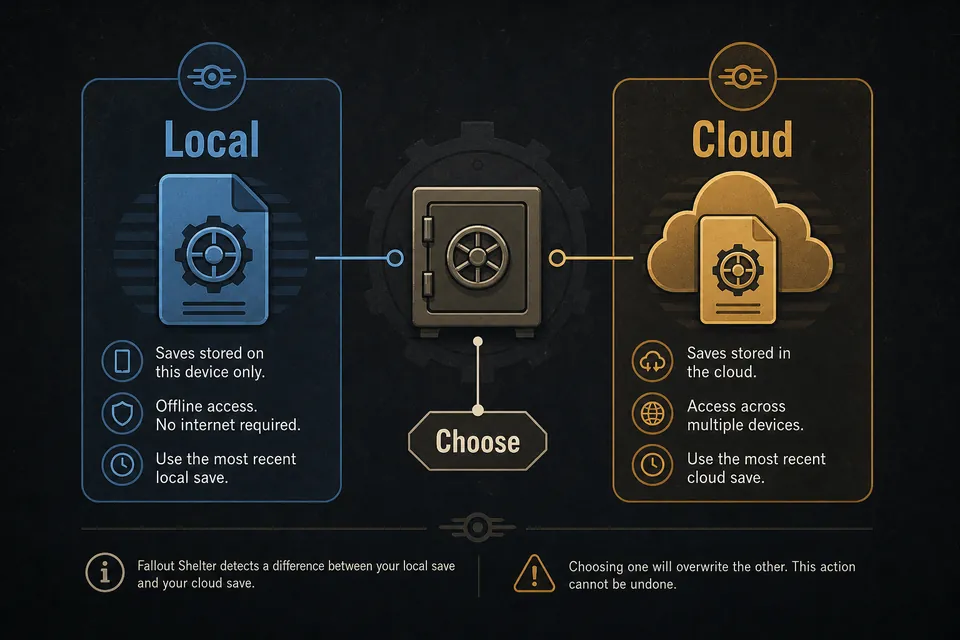
A save conflict is not a normal "continue" prompt. It is a choice between two versions of your vault. One side may be the local file you just repaired or edited. The other side may be the cloud copy from before your edit, from another device, or from a moment when the vault was already broken.
Before choosing a cloud copy
- Check which device last had the correct vault progress.
- Compare timestamps on the local save folder if you can access it.
- Copy the current local save before clicking a cloud restore option.
- Do not open the same vault on another device while you are testing a repaired copy.
- If the prompt mentions overwriting, assume the losing copy will be difficult or impossible to recover.
If an edited save keeps reverting
A revert usually means the edited file loaded once, then a cloud client or second device replaced it with another version. For Steam, test with Steam Cloud disabled for Fallout Shelter, then re-enable only after the edited vault has loaded, saved, closed, and reopened. For mobile, do not toggle cloud restore repeatedly until you have copied the local file or confirmed which slot contains the correct vault.
Safer rule: after a successful edit, create a fresh dated backup of the edited file before letting cloud sync run. That gives you a local recovery point even if cloud sync later chooses the wrong version.
Transfer Checklist for PC, Steam, Android, and iOS
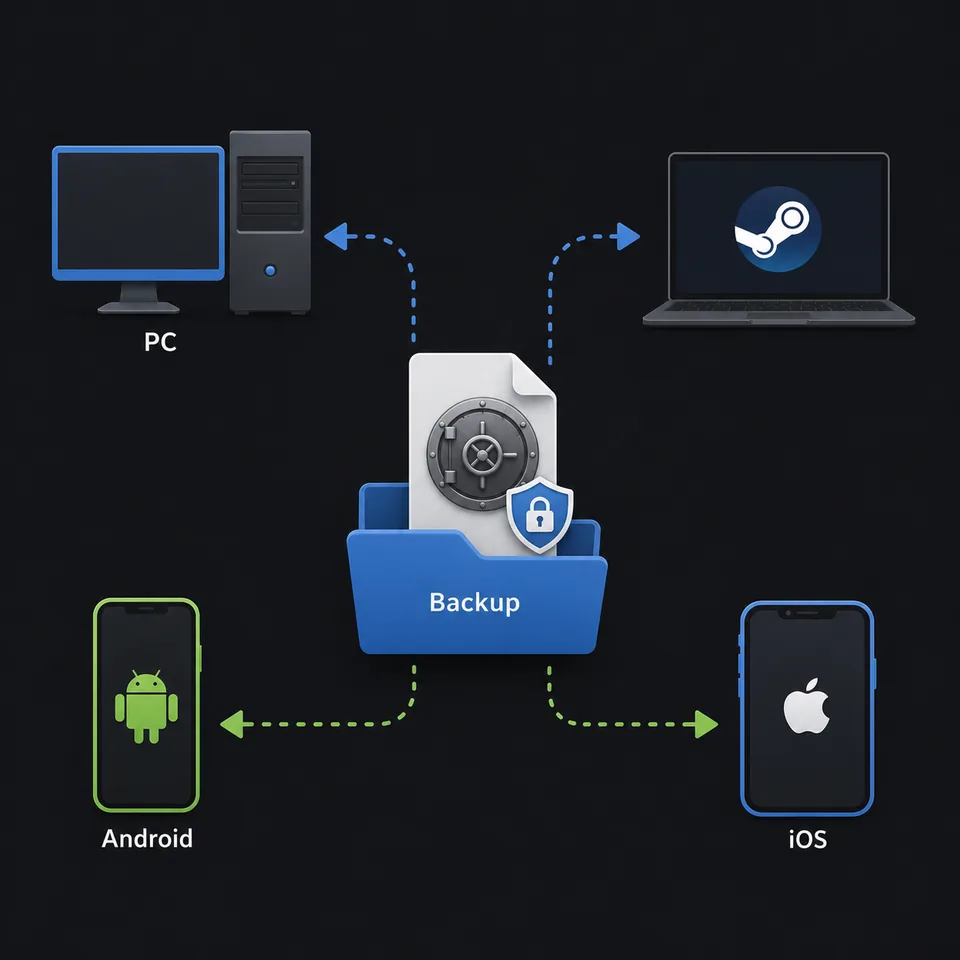
Players often search for "Fallout Shelter save transfer" when they actually need two different answers. The official mobile cloud flow is slot-based and Bethesda says vaults cannot be transferred between Android, iOS, and PC through the official cross-platform cloud system. Manual file workflows are separate: they depend on whether you can access the actual .sav file and whether the destination version can load it.
| Transfer goal | Best first step | Risk to avoid |
|---|---|---|
| Steam PC to another Windows PC | Back up %LOCALAPPDATA%\FalloutShelter, then test the copied save on the second PC with Steam Cloud controlled. |
Letting the second PC upload an older cloud copy before your copied vault is tested. |
| Classic PC folder to Steam folder | Copy the source vault into a dated folder, then place a copy into the Steam save folder while the game is closed. | Confusing the game install folder with the active save folder. |
| Android to PC for editing | Export the accessible Vault#.sav file, edit a copy in the browser, and preserve the original Android folder. |
Replacing the phone copy without knowing whether cloud restore will overwrite it. |
| iOS to desktop for backup or editing | Use an iOS backup or file-sharing workflow to extract the vault, then keep the exported original untouched. | Restoring a whole device backup just to test one edited vault without a separate copy. |
If your goal is not transfer but recovery, use the save repair guide first. Repair work starts by preserving every current file, while transfer work starts by proving which platform and slot has the good copy.
How to Test a Restored or Edited Vault
Do not assume a restored vault is safe just because it appears in the vault list. A proper test checks that the game can load it, save it, close it, and load it again. This matters after save editor changes because a file can be readable enough to launch, but still contain values or states the game does not keep reliably after the next save cycle.
- Put the restored or edited copy into the correct save slot while Fallout Shelter is closed.
- Launch the game and open the target vault.
- Confirm the expected change, such as caps, lunchboxes, dweller stats, or room progress.
- Make a normal in-game save by playing briefly or changing a small safe value.
- Close the game fully, then reopen it.
- If the vault still appears and the change remains, copy this tested version into a new dated backup folder.
When the test fails, do not keep editing the same broken active file. Return to the untouched backup, make a smaller change, and test again. For manual JSON-level checks, use the save decryptor only on a copy and verify that the JSON still parses before converting it back.
Official and Technical References
Use official support pages for platform limits and cloud restore behavior, then use technical references for file paths. Bethesda's mobile restore page describes the cloud checkbox, save conflict prompt, and the limitation that vaults cannot be transferred between Android, iOS, and PC through the official flow. SteamDB's cloud-save page lists the Steam app's Windows cloud path and save patterns.
- Bethesda Support: Fallout Shelter cloud saving on Android and iOS
- Bethesda Support: restore a saved vault from the cloud
- Bethesda Support: Fallout Shelter PC cloud saving
- SteamDB: Fallout Shelter Cloud Saves
FAQ
Does Fallout Shelter cloud save work on every platform?
Cloud save exists for mobile vault slots and Steam supports cloud saves for the Windows version, but the behavior is not identical across platforms. Treat cloud save as sync, not as a complete manual backup system.
Can I transfer a Fallout Shelter vault from Android to iOS or PC?
Bethesda says vaults cannot be transferred between Android, iOS, and PC through the official cloud flow. Manual file workflows may be possible when you can access Vault#.sav, but they are outside the normal cloud restore path and should be tested with backups.
Should I disable Steam Cloud before editing a Fallout Shelter save?
Temporarily controlling Steam Cloud is safer when replacing a local save. Back up the folder, disable cloud sync while testing the edited file, then re-enable it only after the vault loads and survives a close-reopen test.
What files should I copy before using the save editor?
Copy all visible Vault#.sav files, matching Vault#.sav.bkp files, and nearby metadata files in the same save folder. Keeping all slots avoids losing another vault while focusing on Vault1.
Can I use a .sav.bkp file as a backup?
Yes, but copy it first. Rename a copied Vault1.sav.bkp to Vault1.sav only when restoring, and keep the original backup untouched until the restored vault is tested.
What should I do when local and cloud saves conflict?
Stop before choosing a copy, close the game, and preserve both versions if the platform lets you. Compare timestamps or file names, keep the known-good Vault#.sav in a dated backup folder, then test the chosen local or cloud copy before enabling sync again.
Final Recommendation
The safest Fallout Shelter save workflow is to separate cloud sync, manual backup, editing, and testing into different steps. Cloud save can help you recover a mobile or Steam vault, but a dated copy of the actual save folder is the only backup you fully control. Before every serious edit or transfer, copy the files, edit only a working copy, test a small change, and create a fresh post-test backup before allowing sync to update the cloud copy.